

On This Page
What you need
#- An E-IMZO key (a
.pfxfile or a USB key) and its password. An LLC (MChJ) uses the director’s or company key; a sole trader (YaTT) or self-employed person uses their own personal key. - A computer (Windows) — the easiest way for Didox and my.soliq.uz. A phone works too. If you are self-employed, you add the commissioner from your phone, in the Soliq app (section 6).
- The «Soliq komissioner» step in the Dona app: the contract number, date, validity period, MFO and account are there — copy them with the copy button, don’t retype them.
1. Get an E-IMZO key
#Already have a key? Skip to section 2.
- Pay the fee at a bank, or with Payme, Click, Upay or Paynet. The amount changes — the current one is on the official e-imzo.soliq.uz instruction.
- e-imzo.soliq.uz → «Elektron kalit olish» → «Ariza shaklini toʻldiring». Choose company or individual, enter your PINFL (14 digits) and phone, the SMS code, then «QR-code shakllantirish».
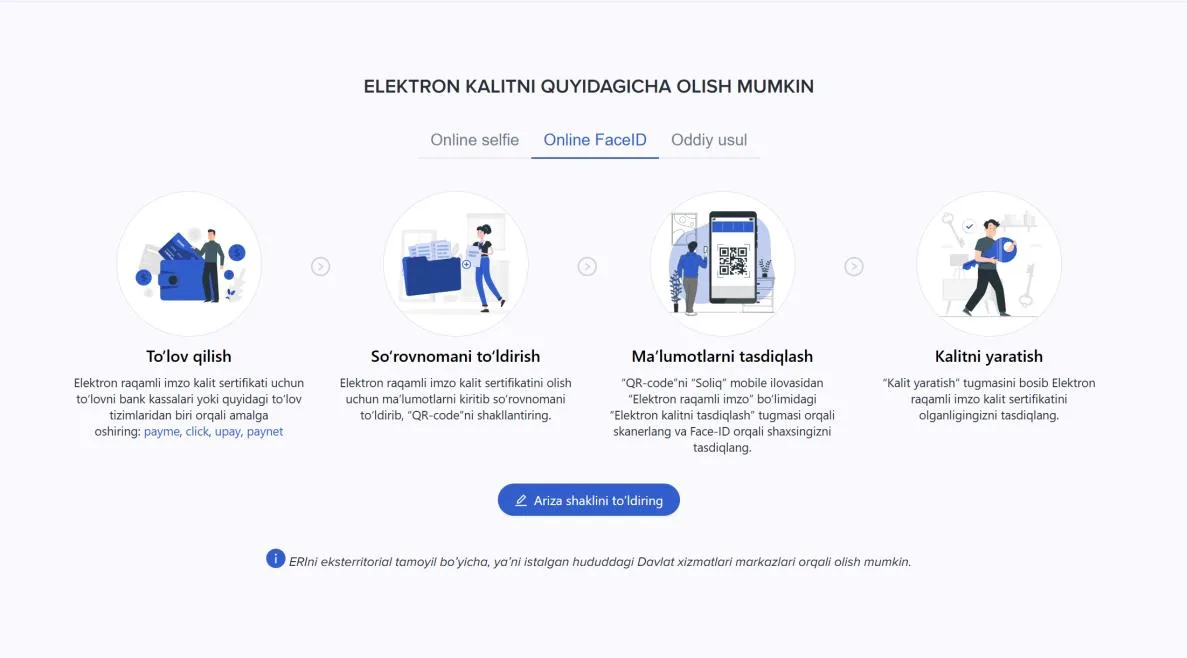
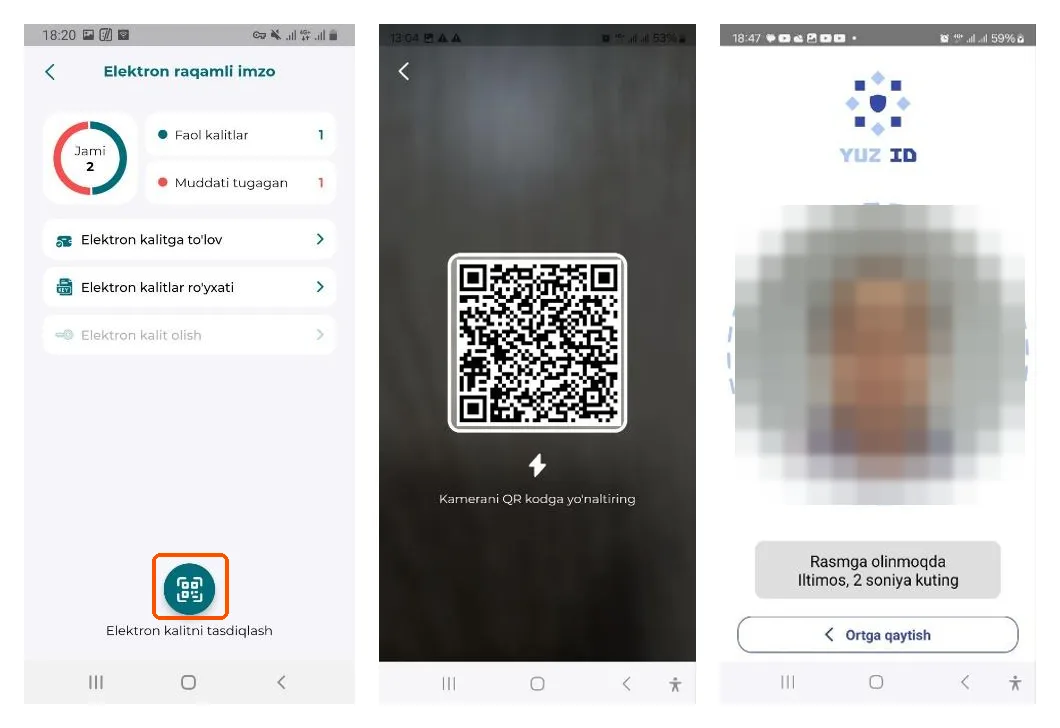
- On your phone open the Soliq app → «Elektron raqamli imzo» → «Elektron kalitni tasdiqlash» → scan the QR code and confirm with your face (Face-ID).
- Tap «Kalit yaratish» and type the password twice: at least 10 characters, at least 2 small and 2 capital Latin letters, and digits. Write the password down.
Prefer to get it in person? Go to any Public Services Centre (Davlat xizmatlari markazi), in any region.
2. Install E-IMZO on your computer
#- e-imzo.soliq.uz → the E-IMZO button → download «Windows JRE 1.8». Note the «Arxiv paroli» (archive password) at the top of the window.
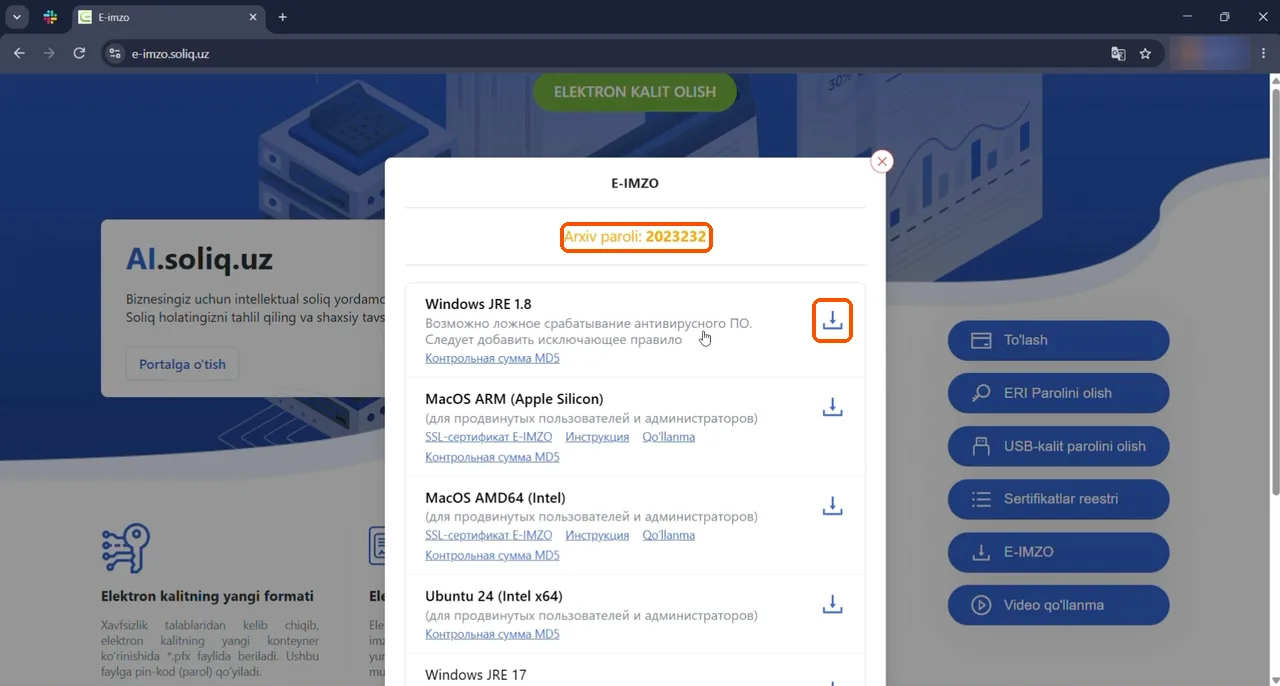
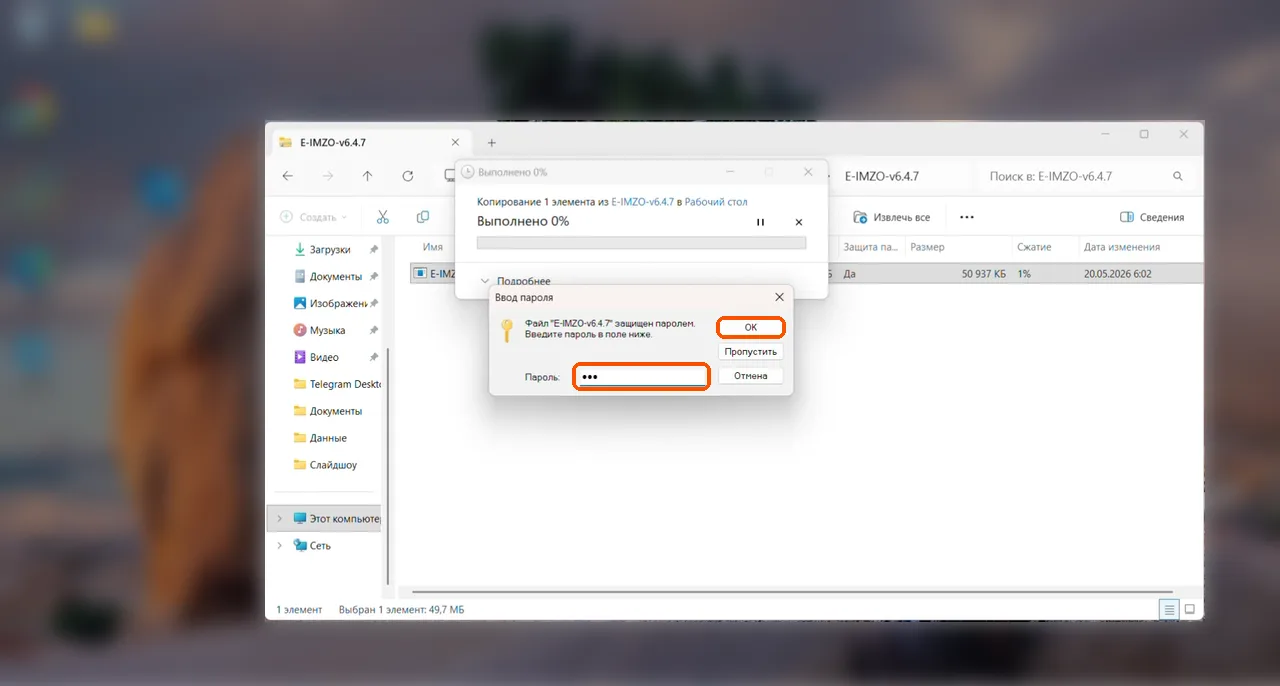
- Open the zip, type the archive password and extract the file.
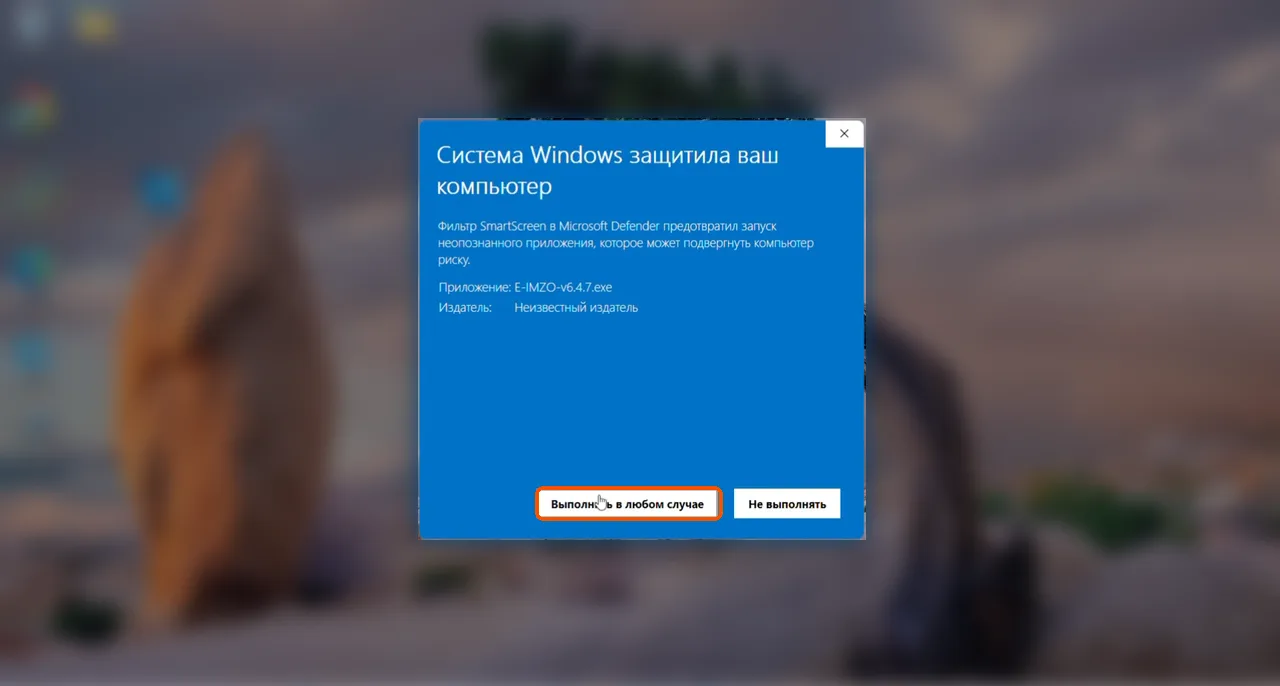
- Run the installer. If Windows says it «protected your PC»: «More info» → «Run anyway». Only do this for the file from e-imzo.soliq.uz.
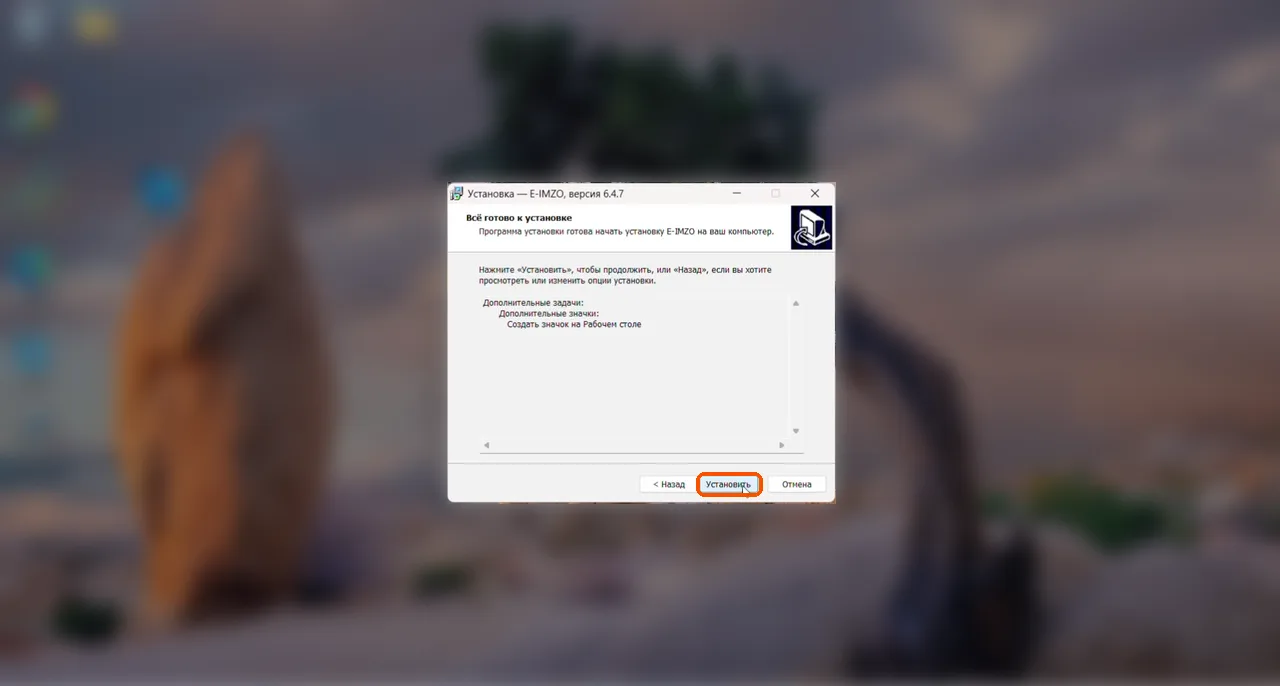
- Click «Install».
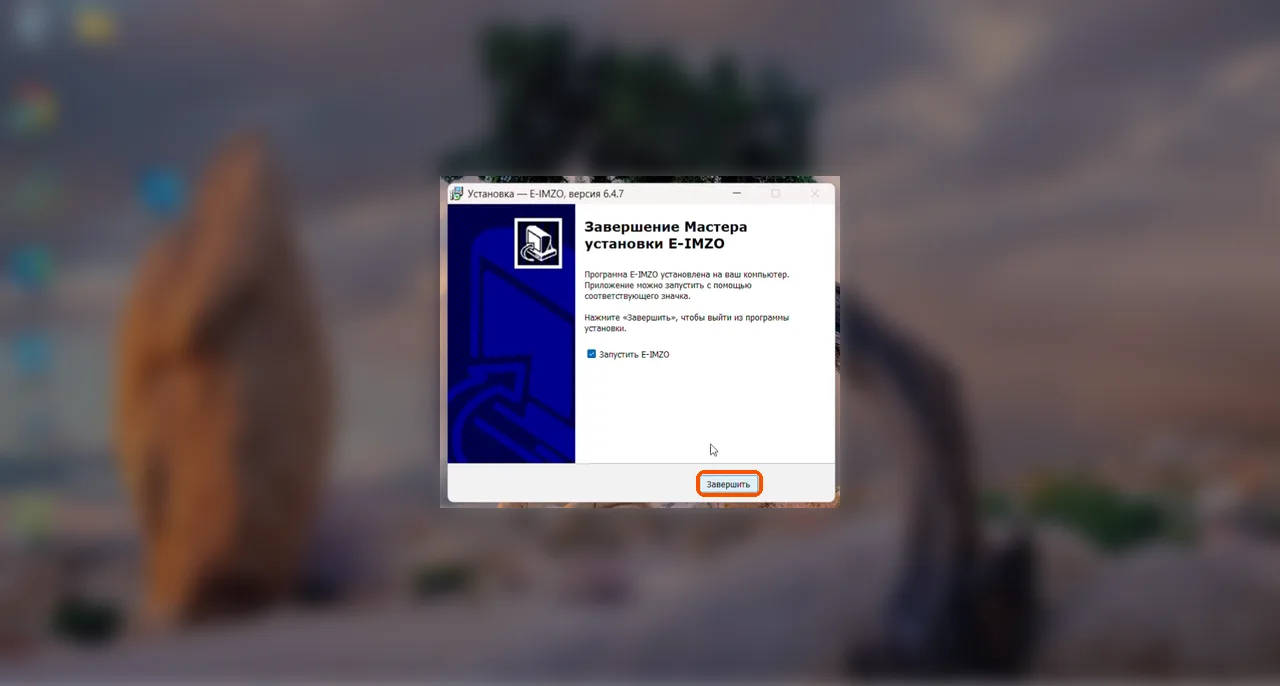
- Click «Finish» — E-IMZO starts. Before every signing, double-click the green E-IMZO icon on your desktop.
- At the very root of drive C: (the path
C:\DSKEYS) create a folder named DSKEYS and put your key file (DS….pfx) in it. If the folder is inside Documents or on the desktop, E-IMZO will not see the key.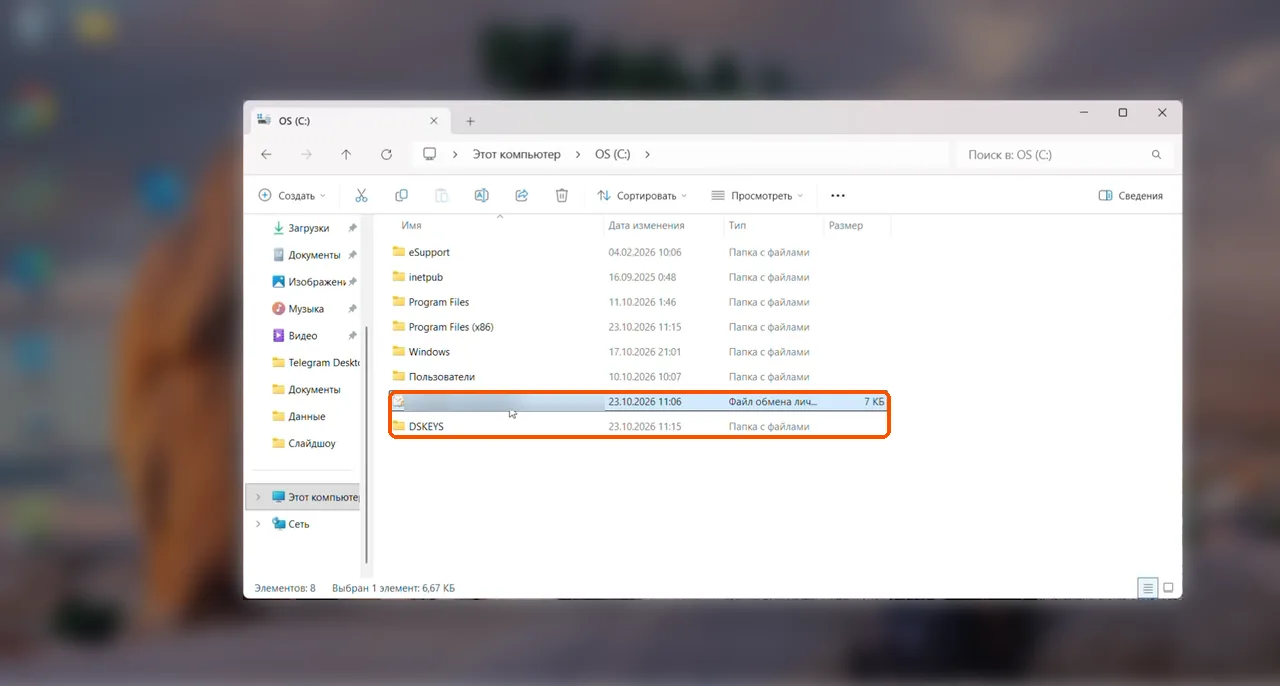
On a Mac: the same window has «MacOS ARM» (Macs with M1, M2, M3… chips) and «MacOS Intel» (older Macs) versions, each with its own «Instruksiya» link.
3. Sign Dona’s document in Didox (computer)
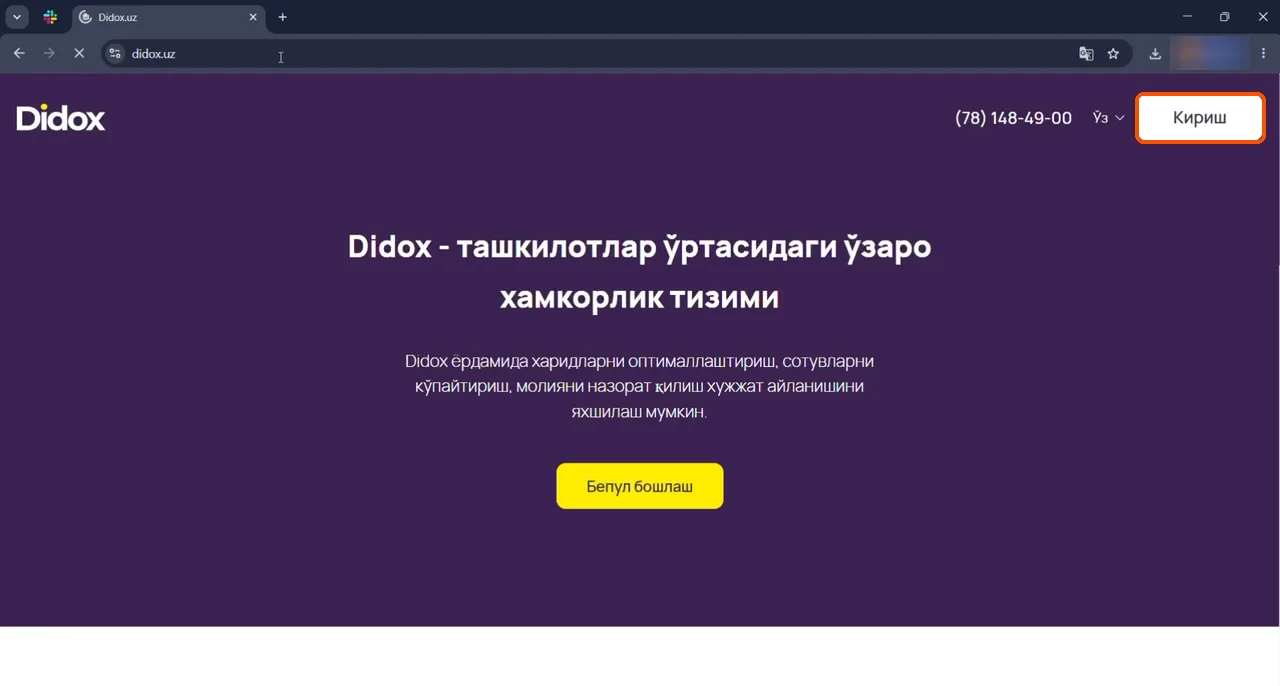
#- Make sure E-IMZO is running. Open didox.uz → Kirish (Log in).
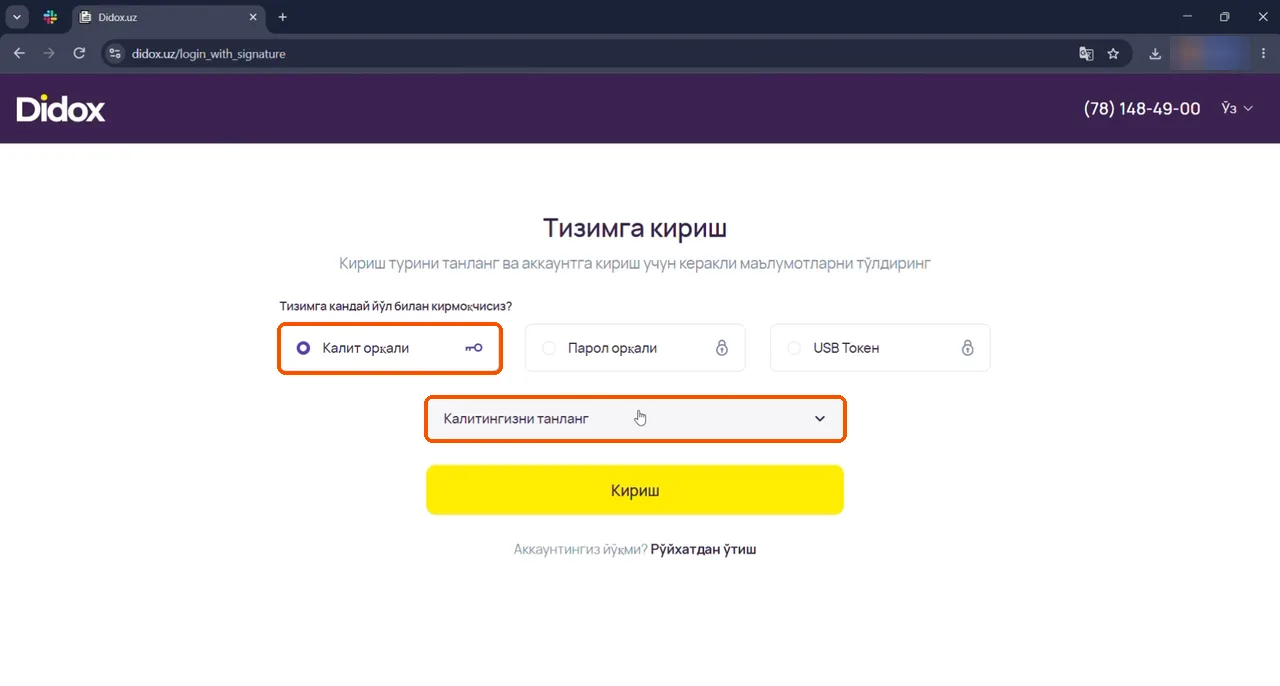
- Choose Kalit orqali (with a key) → pick your key from «Kalitingizni tanlang» → Kirish.
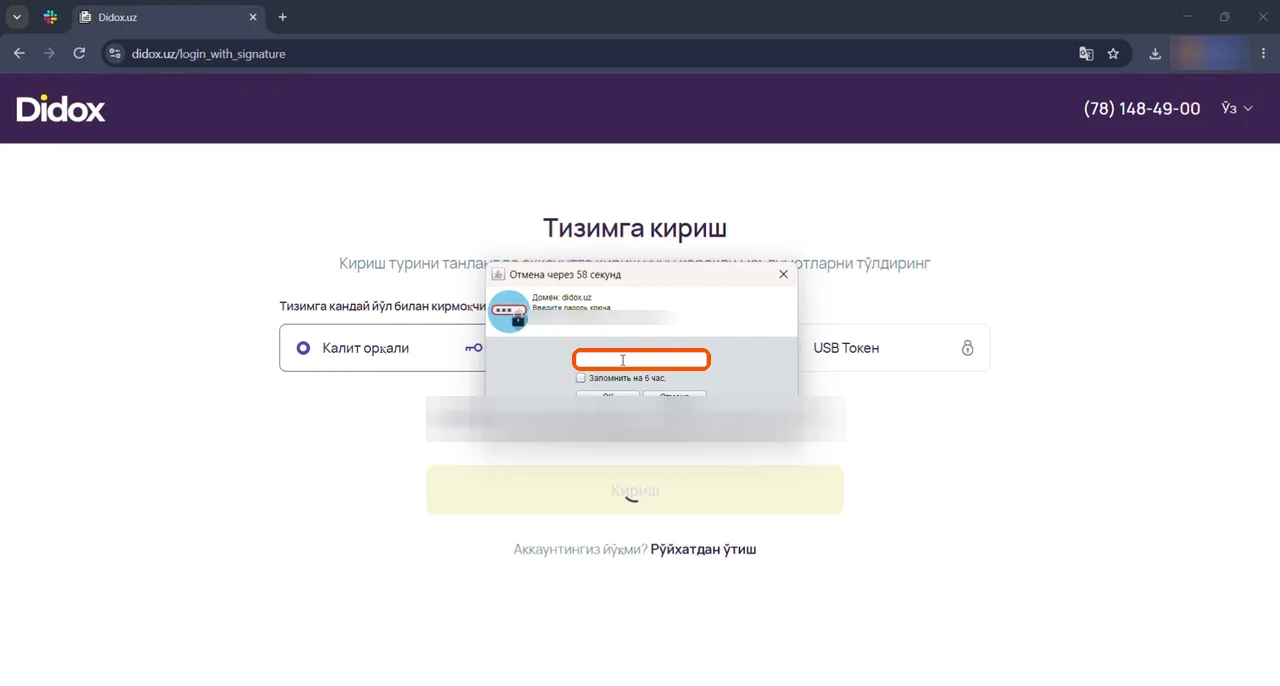
- Type your key password in the E-IMZO window → OK.
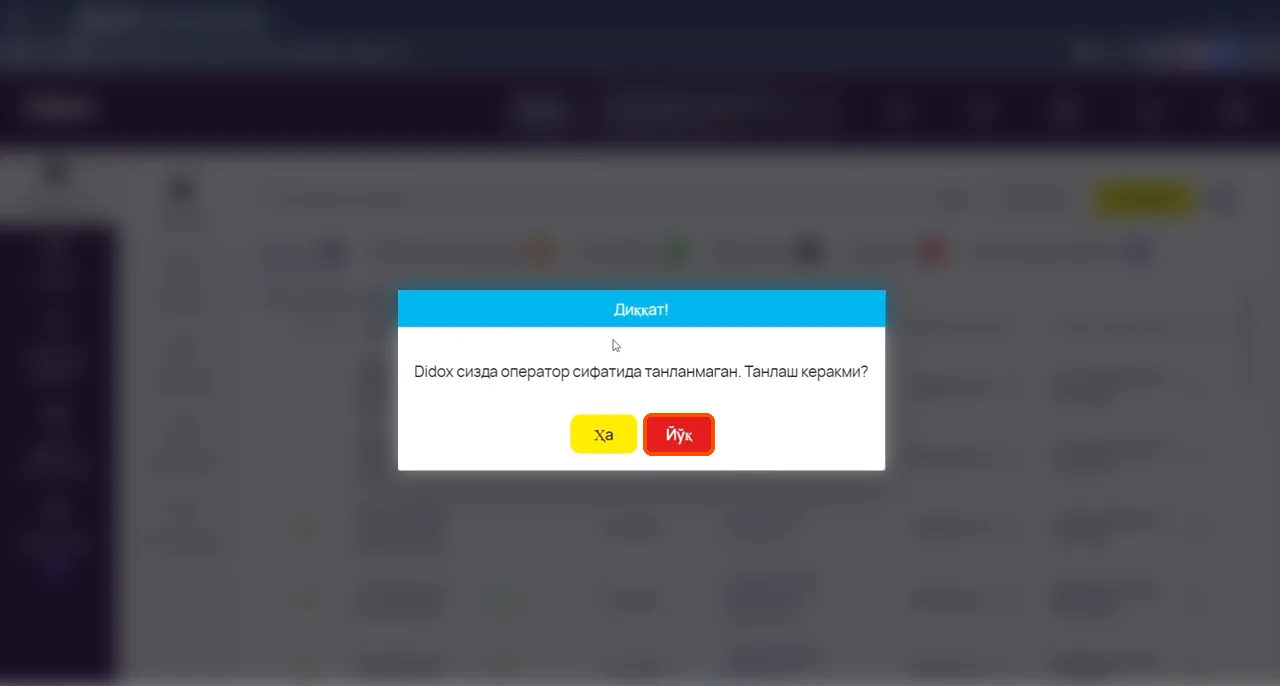
- If an advert opens, close it. If Didox asks whether to choose it as your operator — press Yoʻq (No).
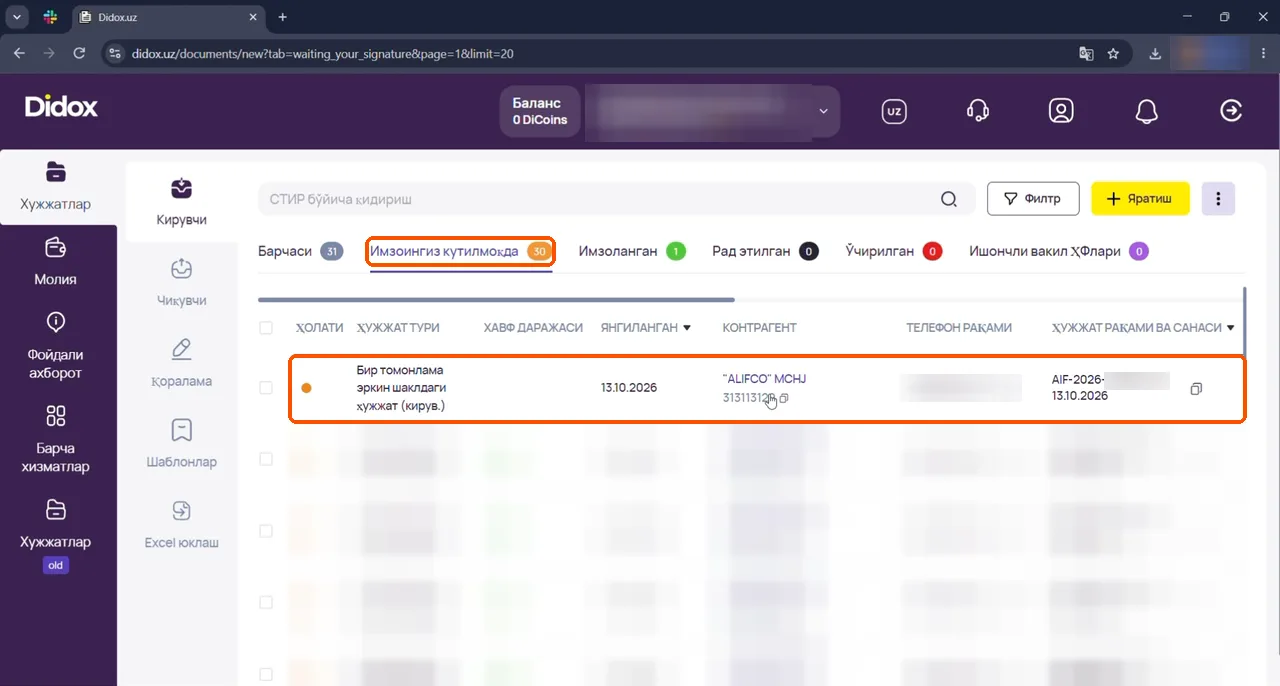
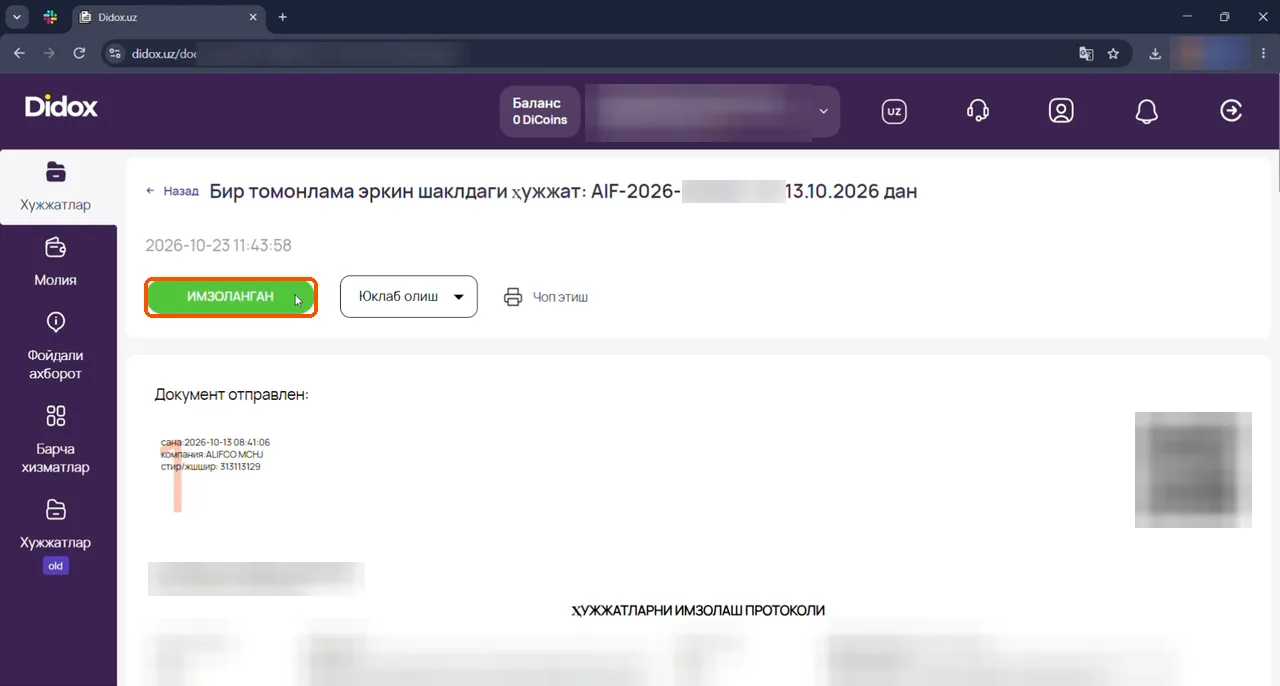
- Documents → Kiruvchi (Incoming) → «Imzoingiz kutilmoqda» (Waiting for your signature) → open the row from “ALIFCO” MCHJ («one-sided free-form document»). Its number (like AIF-…, with «-D…» at the end) matches «Document №» in the Dona app. In section 5, type the «Contract №» from the app into Soliq — that is the same number without the «-D…» ending.
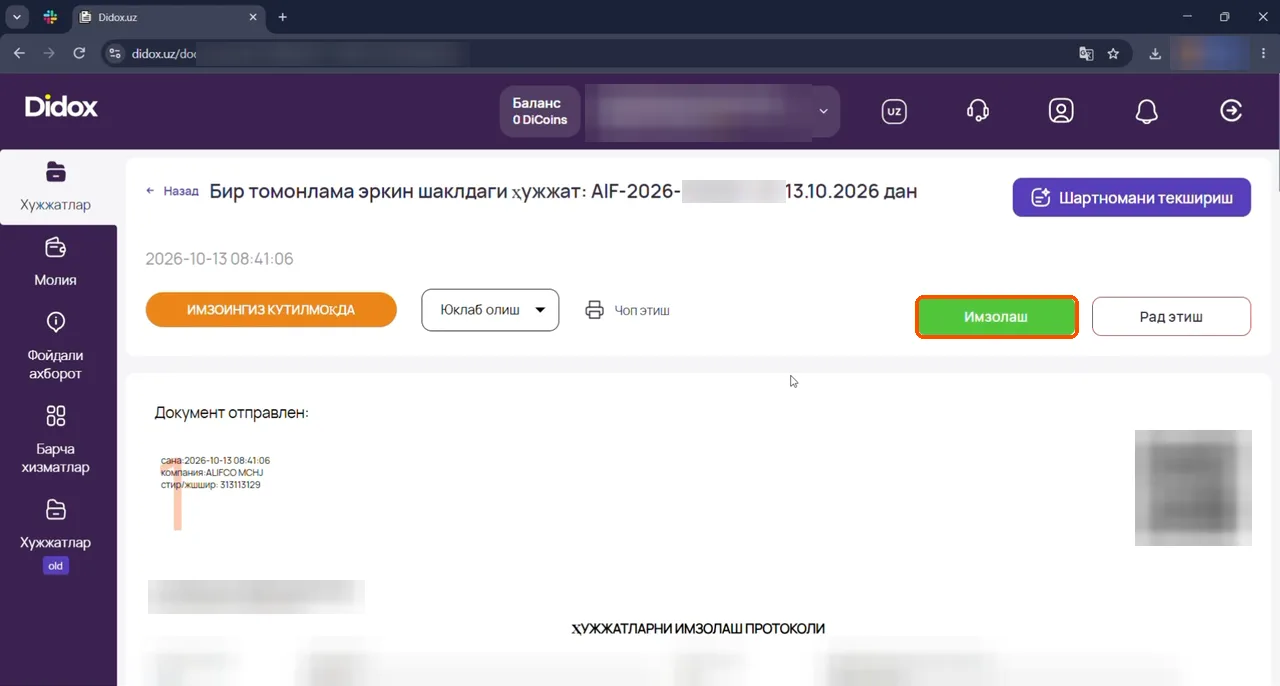
- Read the document and press Imzolash (Sign).
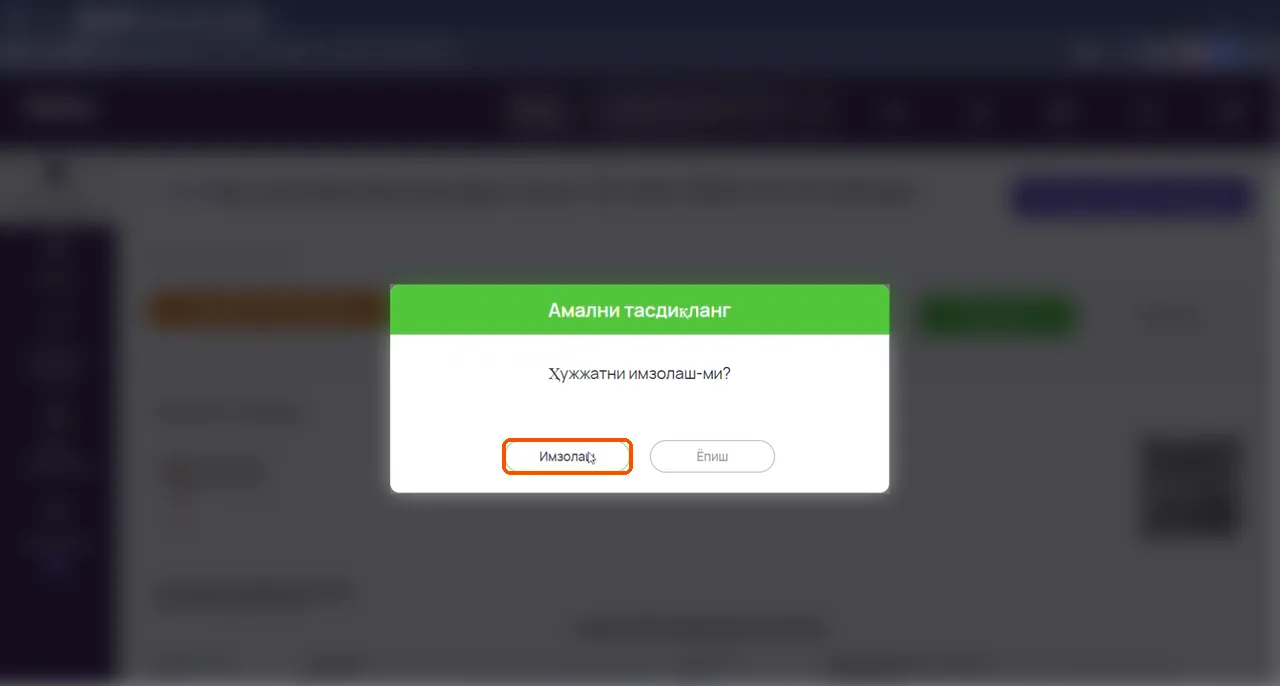
- In «Amalni tasdiqlang» (Confirm) press Imzolash again. Type your password if asked.
- The status turns green — Imzolangan (Signed). Done. In the Dona app tap «I signed — check».
4. Sign on your phone
#- Install the Didox and E-IMZO apps from the App Store or Google Play.
- Put your key file (
.pfx) in the phone’s Downloads folder or on its memory card. - Log in to Didox → Incoming → «Imzoingiz kutilmoqda» → ALIFCO’s document → Imzolash → choose the key in the E-IMZO app and type the password.
5. Soliq: add ALIFCO as your commissioner — on a computer (LLC and sole trader)
#If you are self-employed, do this step on your phone, in the Soliq app — go to section 6.
- my.soliq.uz → «Shaxsiy kabinet» (Personal cabinet).
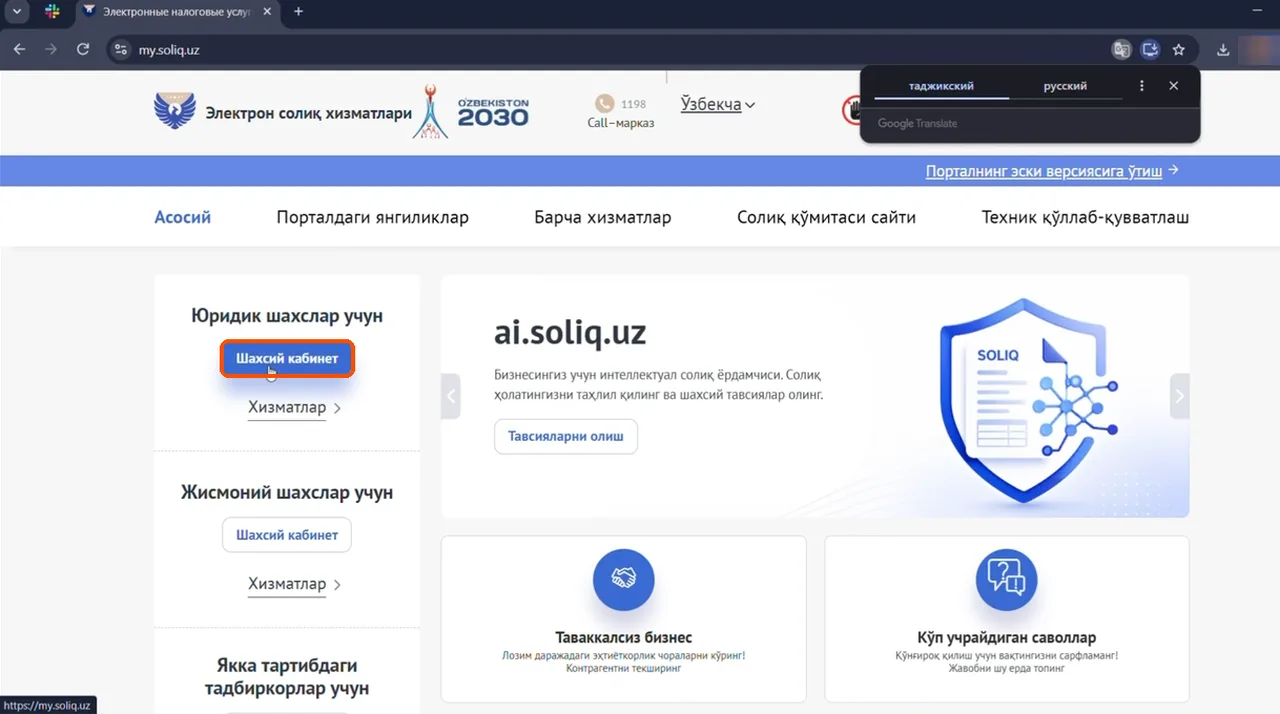
- Choose your type (company or sole trader) → ERI bilan kirish (log in with E-IMZO) → your key → Kirish → password.
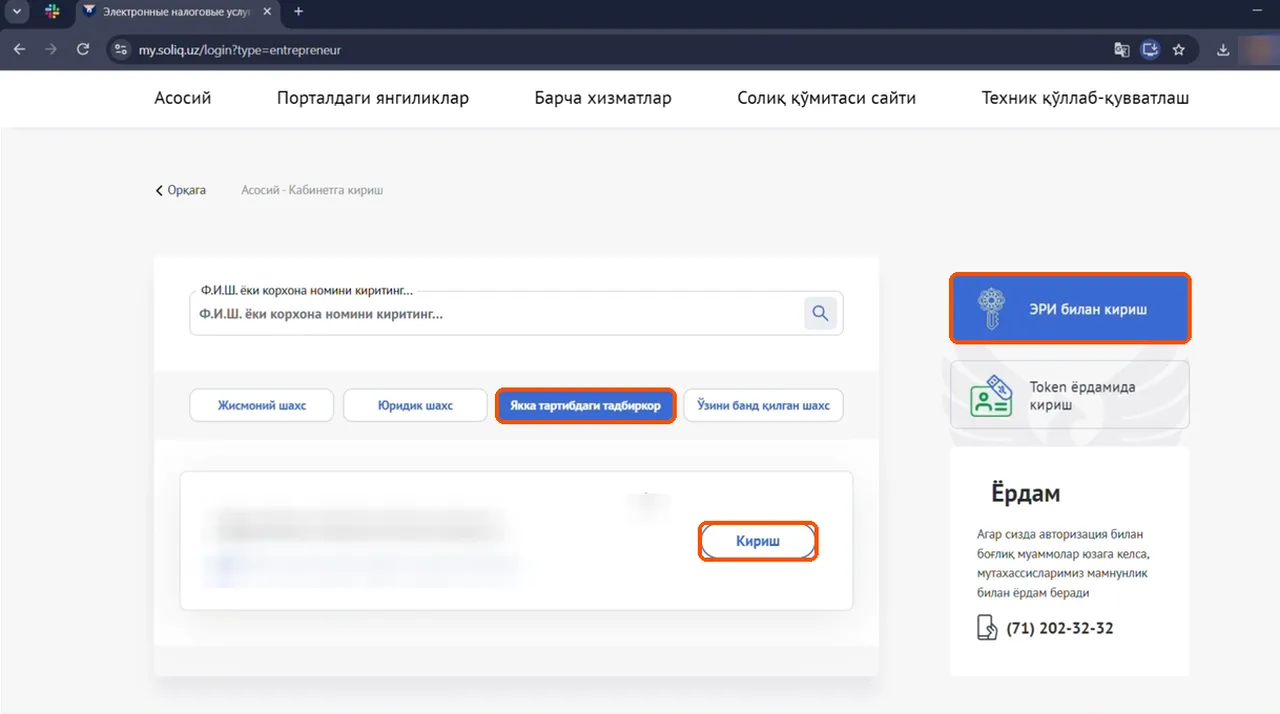
- Xizmatlar (Services) → search «komissioner» → open «…komissionerlari roʻyxatini shakllantirish».
- Arizalar (Applications) → Komissioner → + Qoʻshish (Add).
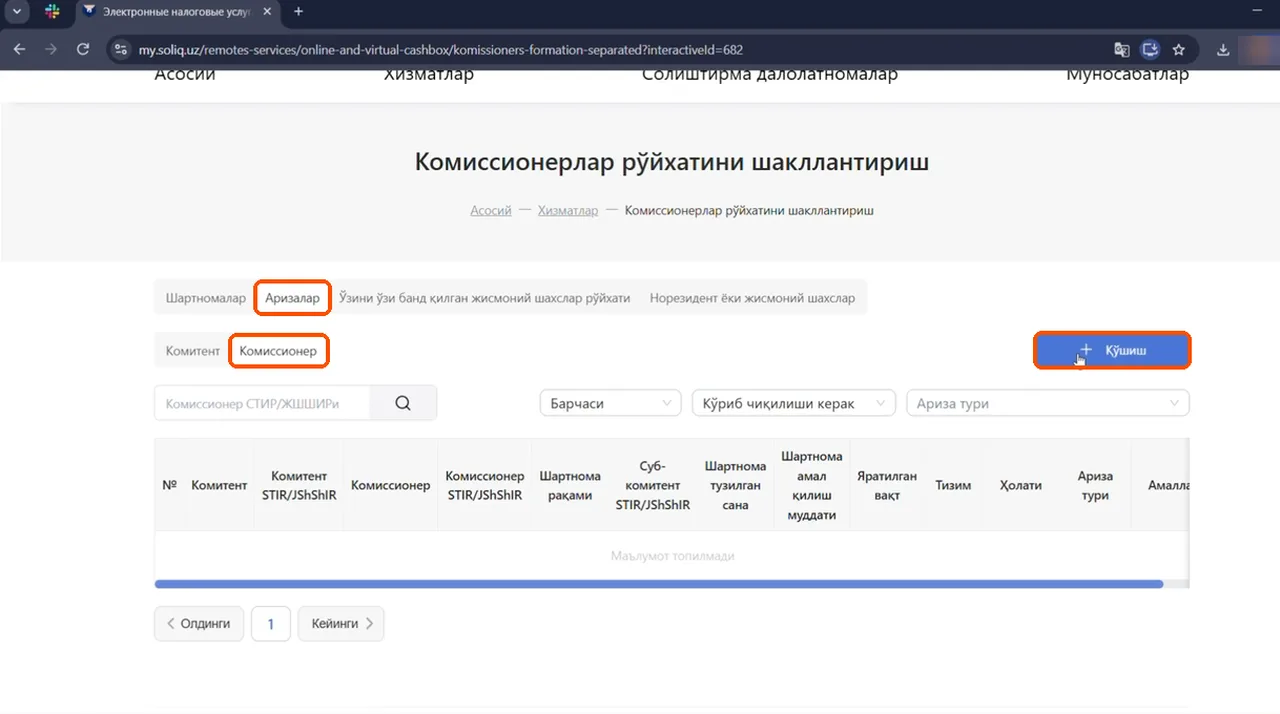
- Type 313113129 in the STIR field — «“ALIFCO” MCHJ» fills in by itself. Copy the other fields from the «Soliq komissioner» step in the Dona app: Contract number — «Contract №» in the app, that is the number of the document you signed in Didox (AIF-…), without the «-D…» ending; the contract date; the start and end dates from «Valid until»; MFO and account. Tick Marketpleys → Saqlash (Save).
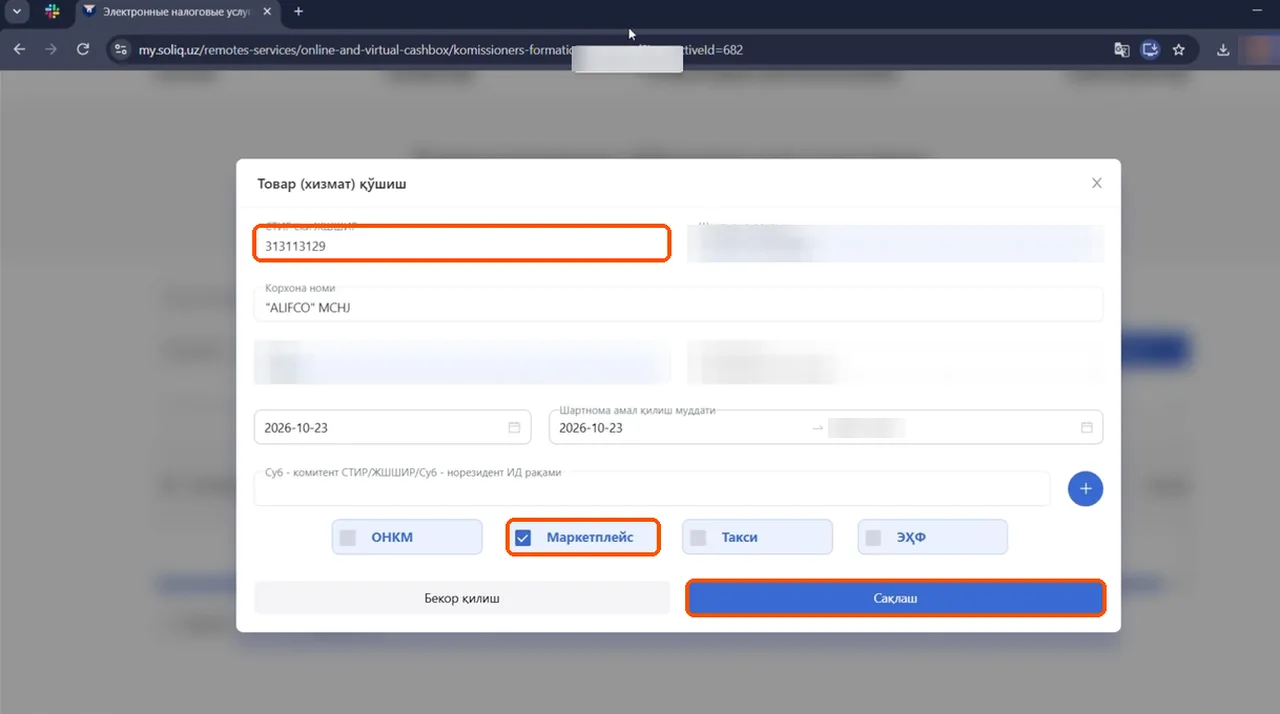
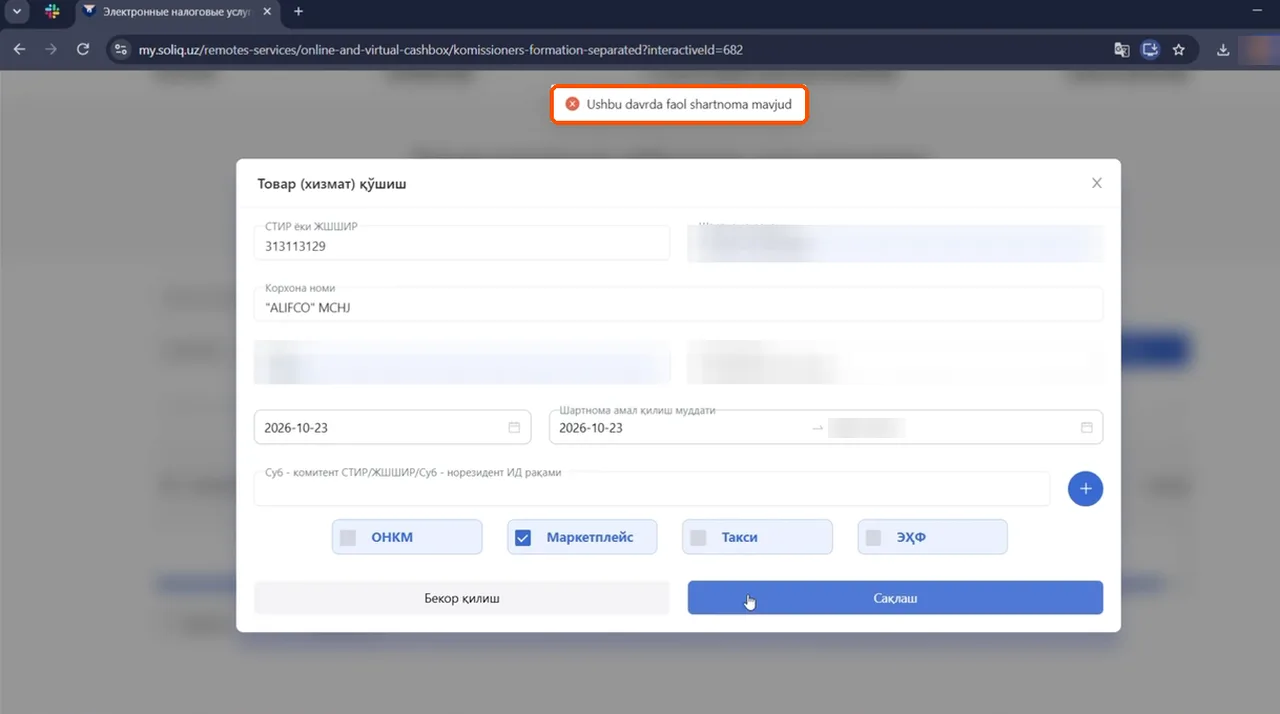
- ALIFCO now shows in the list — done. In the Dona app tap «I added it — check». If you see «Ushbu davrda faol shartnoma mavjud», ALIFCO is already added.
6. In the Soliq app (self-employed)
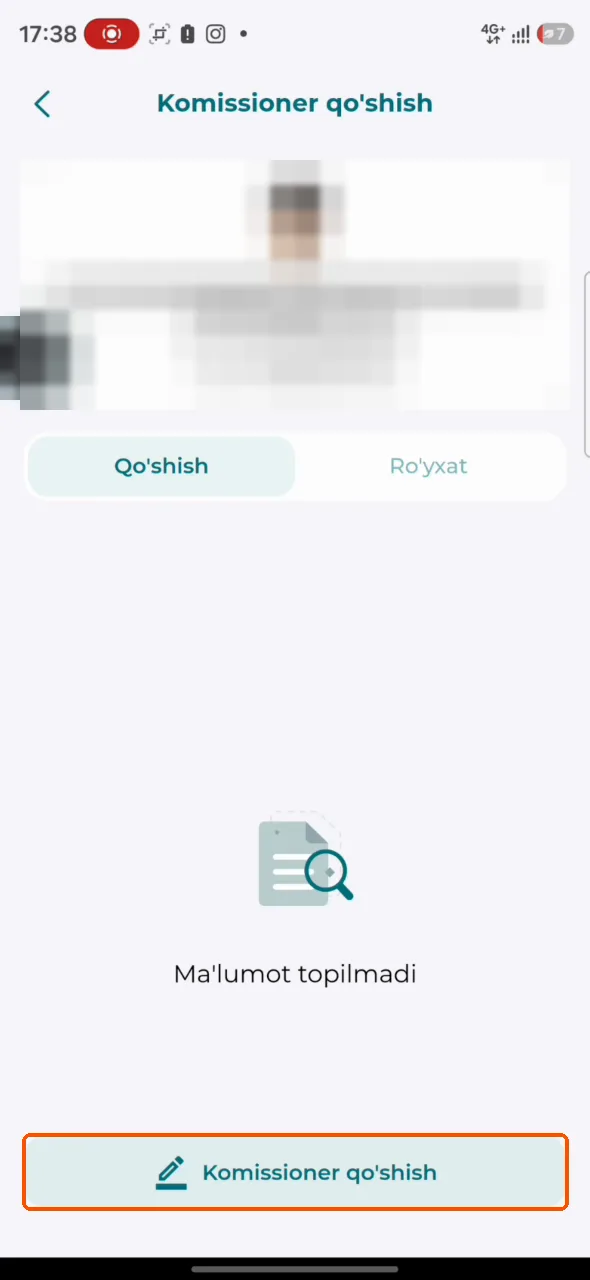
#- Open Soliq → Xizmatlar → «Hammasi» → Personal xizmatlar → Komissioner shakllantirish.
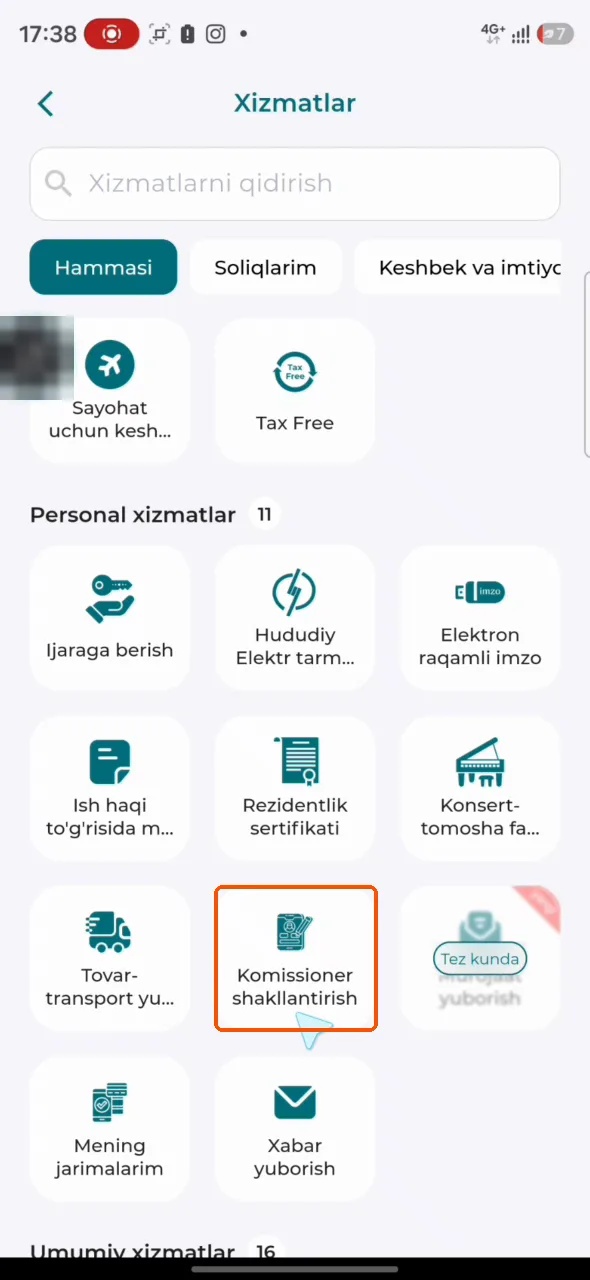
- Tap Komissioner qoʻshish.
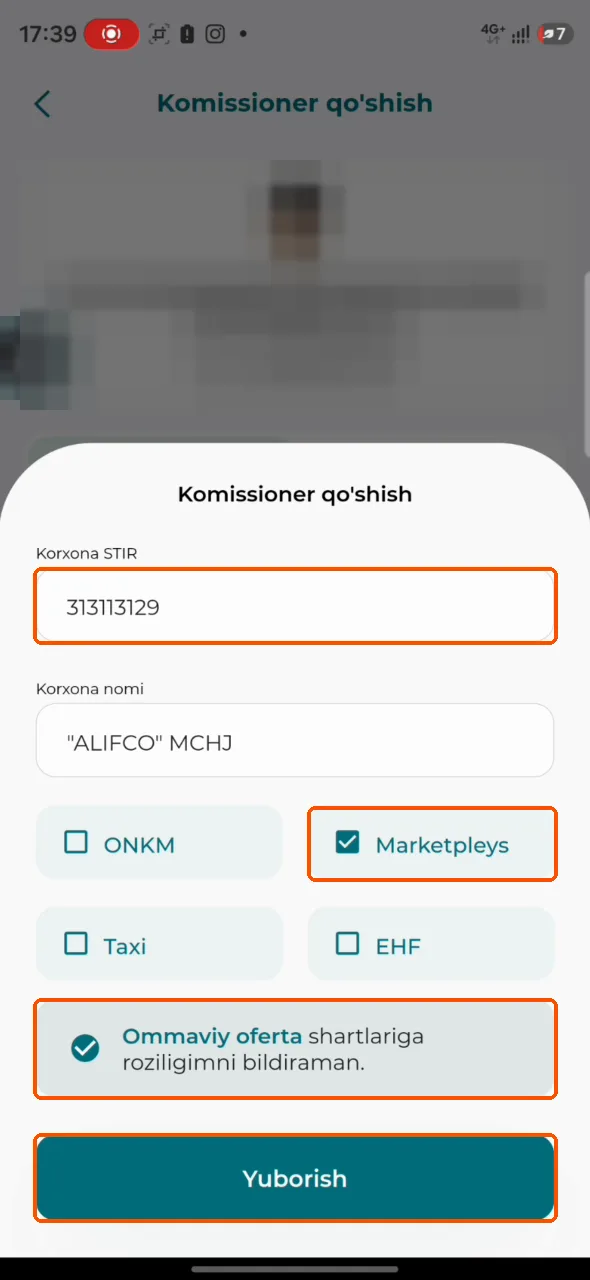
- Korxona STIR: 313113129 — «“ALIFCO” MCHJ» appears. Tick Marketpleys and «Ommaviy oferta shartlariga roziligimni bildiraman» (I agree to the public offer) → Yuborish (Send).
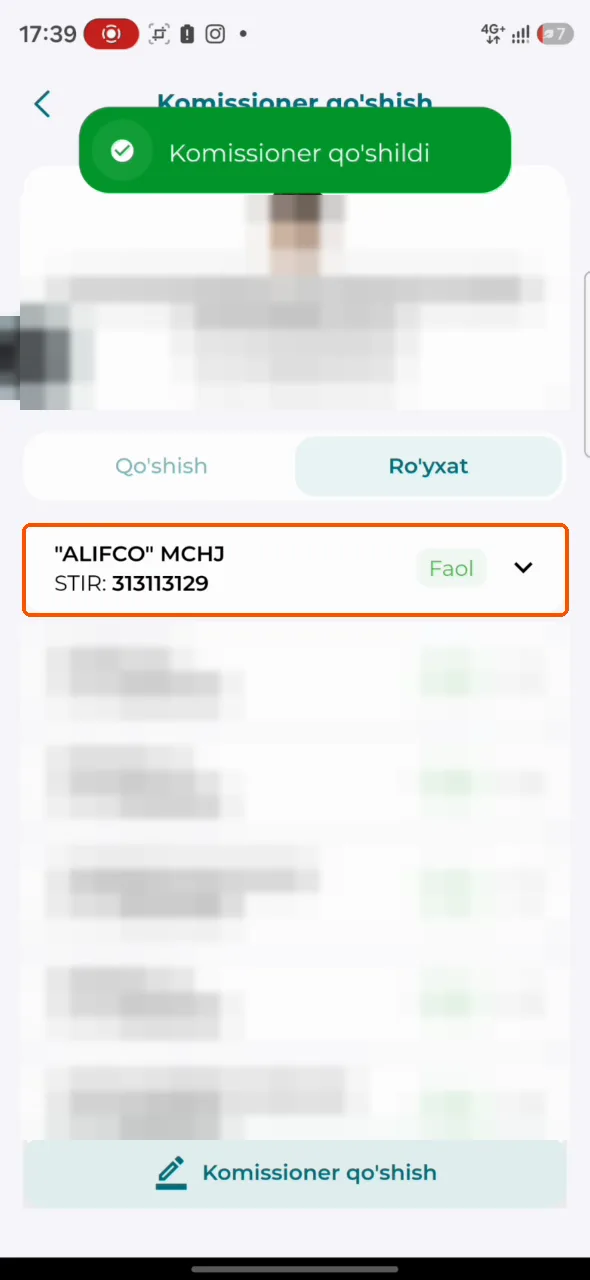
- «Komissioner qoʻshildi» — in «Roʻyxat» ALIFCO is Faol (active). In the Dona app tap «I added it — check».
If you get stuck
#- Is E-IMZO running? If Didox says the E-IMZO app is not running — start it and refresh the page.
- Key not in the list? The file is not in
C:\DSKEYS, or the USB key is not plugged in. - Wrong password? Type it again. Forgot it — see the questions below.
- Didox (78) 148-49-00 · E-IMZO centre (71) 202-32-32 · Soliq call centre 1198 · Dona Yordam in the app.
Frequently asked questions
#What is E-IMZO and why does Dona need it?
It is your electronic signature. You sign Dona’s document in Didox with it, and log in to my.soliq.uz with it.
Where do I get a key?
Online at e-imzo.soliq.uz (Face-ID in the Soliq app), or at any Public Services Centre.
How much does it cost?
The fee changes — the current amount is on the official e-imzo.soliq.uz instruction.
How long is a key valid?
Up to 24 months. Then you get a new one.
Whose key — mine or the company’s?
An LLC uses the director’s or company key. A sole trader or self-employed person uses their own personal key.
What are the password rules?
At least 10 characters, at least 2 small and 2 capital Latin letters, and digits.
I forgot my key password.
It is sent by SMS to the phone in your application. On e-imzo.soliq.uz use «ERI parolini olish» (the «Parolni tiklash» button next to your key in my.soliq.uz takes you there).
The zip asks for a password.
It is printed at the top of the download window: «Arxiv paroli».
Windows or my antivirus blocks the installer.
The site itself warns of a possible antivirus false alarm. Download only from e-imzo.soliq.uz, then «More info» → «Run anyway».
Didox does not see my key.
Start E-IMZO and refresh the page. The key file must be in C:\DSKEYS, or the USB key must be plugged in.
Didox says my key is invalid.
It has expired or been revoked — get a new one.
Didox asks about choosing an operator.
Press «Yoʻq» (No). Dona’s document is signed inside Didox; the operator choice is for invoices.
Where is Dona’s document in Didox?
Documents → Incoming → «Imzoingiz kutilmoqda» → sender “ALIFCO” MCHJ.
Do I need money on my Didox balance?
No. The document was signed even with a zero balance (0 DiCoins). If an advert appears, just close it.
Can I sign on my phone?
Yes: the Didox app signs through the E-IMZO app. Put the .pfx file in the phone’s Downloads folder or on its memory card.
I am self-employed — where do I add the commissioner?
In the Soliq app: Xizmatlar → Personal xizmatlar → Komissioner shakllantirish (section 6).
my.soliq.uz says «Ushbu davrda faol shartnoma mavjud».
ALIFCO is already your commissioner for that period. Check the list — no need to add it again.
Who do I call?
Didox (78) 148-49-00 · E-IMZO centre (71) 202-32-32 · Soliq 1198 · Dona Yordam in the app.