


Managing stock on Dona: set, update and track what you can sell
Where to set product stock in the Dona seller panel, how to update many products at once, when stock goes down and comes back, and what Low stock means.

A buyer orders, the shelf is empty, and you have to cancel: usually because Dona’s stock did not match reality. Here is where to set stock, how to update many products at once, and when Dona changes it on its own.
What stock is and where you set it#
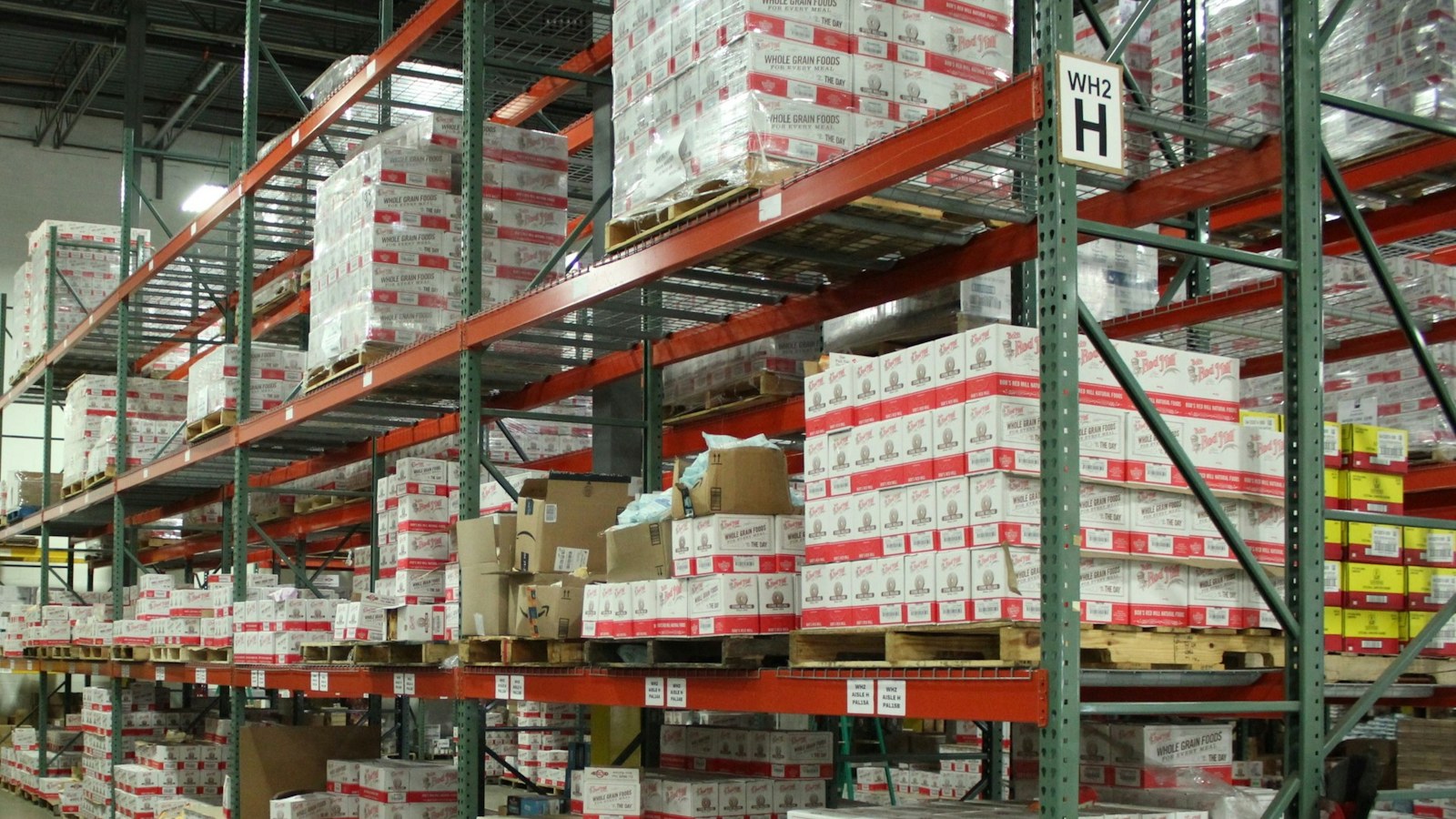
Stock is the number of units you can ship right now. You set it in the Inventory step of the product form. Do not count goods “on the way”: buyers order against what you show.
If a product has sizes or colours, stock is counted per variant. The “Price & stock per variant” table has two helpers:
- “Stock for all” and “Apply to all”. Type a number once and it goes to every variant.
- “Fill empty only”. Only variants with no stock yet get the number.
The minimum is 0.
Updating stock for many products at once#
There are two ways:
- From the list. In “My products”, select the products and click “Set stock”. This works for products without variants.
- With Excel. On the “Mass edit” page, click “Download file”, change the stock, and send it back with “Upload edited file”. Uploading saves nothing yet: check the preview, click “Apply changes”, then check the job report for skipped rows. Products changed after the download (say, sold meanwhile) land in “Conflicting rows” and are skipped, so return the file quickly. Variant stock is not changed in this file, only in the product editor.
With MoySklad, BILLZ or Smartup, stock can come in through an integration. A refresh only lowers stock on non-variant products (you confirm increases) and never touches variant stock, so keep that by hand. More in connecting MoySklad to Dona.

When stock goes down and when it comes back#
Dona takes stock when the order is placed, before payment, so two buyers cannot both get the last unit.
Stock comes back by itself when:
- the buyer does not pay an online order within 30 minutes — the order is cancelled (a cash-on-delivery order is not cancelled this way);
- the order is cancelled fully or in part;
- you decline the order, or do not accept it in time (it is declined automatically);
- the buyer returns the item: the returned unit goes back on sale without any condition check.
Important: Dona does not look at the reason. If you decline because the item is not on the shelf, or the courier finds a shortage at pickup, Dona still puts those units back and they go on sale again. Then set the stock to 0 or the real number yourself, straight away.
So after ordinary buyer cancellations you need not fix stock by hand; change it when goods arrive, when a count differs, after an out-of-stock cancellation, or when a return is damaged.
What happens when stock runs out or runs low#
At 0, the product page stays and shows up in search, but nobody can buy it. It is also left out of the home feed, the popular list and the video feed, so new buyers stop seeing it. In the panel the product gets a “Sold out” badge and, if active, moves to the “No Stock” tab. With variants, the badge appears only when all are out; check single sizes in the variant table. In a live stream, a zero-stock product is not shown on screen, so viewers cannot buy it from the stream: check stock before going live.
At 1 to 5 units, the product is marked “Low stock”. With variants this also uses the total. The list has a “Low stock” filter and a “Stock: Low to High” sort. The to-do list also shows “Low stock” and “Out of stock” reminders.
A simple daily routine#
- Start the day with the “Low stock” filter.
- Before a live stream, check stock for the products you will show: if none of them has stock, the stream will not start.
- After a count, update stock in one Excel file (variants in the product editor). Enter the shelf count minus units in orders not yet shipped: Dona has already taken those off, so entering the raw count oversells. With an integration, update the stock system first, or the next refresh lowers it again.
- Panel overview: what the seller panel is.
Frequently asked questions#
If stock is 0, is my product deleted?
A buyer ordered and did not pay. Is the item stuck?
Can I change variant stock through Excel?
Read nextconnecting BILLZ to Donaconnecting Smartup to Dona
Open your shop today: download the Dona app.
For sellers
See all (17)
How to connect MoySklad to Dona: products and stock without retyping
How to bring products, prices, photos and stock from MoySklad into your Dona shop: login or token, review list, import and optional stock write-off.
How to connect Smartup to Dona: a distributor catalogue goes online
How to bring products, prices and stock from Smartup ERP into your Dona shop: server address, integration login, branch and warehouse codes, review list.
A day in the life of an online seller: five daily jobs
What an online seller does every day: shipping orders, updating stock and prices, answering buyers, going live, and reviewing the numbers at day's end.


